











If you are wondering how to see who is watching your Twitch stream (on your desktop):
Twitch is one of the most dominant broadcasting channels in 2026. With over 240 million users, it has the most active live streamers of any other platform. Learning how to see who is watching your Twitch stream is crucial to increasing engagement.
This guide will walk you through the essentials of tracking your viewers and offer tips to work on your engagement strategy. It will also help you build a more interactive and loyal audience. Let's dive in.
Understanding Twitch Viewer Insights
Twitch provides streamers with some limited insights into who is watching their streams. While it doesn't offer a comprehensive list of every viewer, it does give a peek into certain aspects.
Viewers vs. Users in Chat
When you’re streaming on Twitch, it’s helpful to understand the difference between viewers and users in chat.
On the flip side, not all viewers choose to chat. Those who watch your stream without typing are often called “lurkers.” Even though lurkers contribute to your overall viewer count, they don’t show up in the viewer list. So, you won’t know who they are.
This is pretty common on Twitch. Many people enjoy watching streams without feeling the need to join in the conversation.
Can You See Anonymous or Lurking Viewers on Twitch?
The answer is no. You can not see the individual viewer’s name. While they surely contribute to your viewer count, their identity remains hidden.
The same goes for lurkers (silent viewers). They will also appear in your “users in chat” option. Lurkers may not be actively watching your video. For example, they may use a muted or minimized tab.
By focusing on engaging with chat users, you can encourage lurkers to join the discussion and help create a more vibrant community around your streams.
Let’s see their key differences:
Where to Find the Viewer List?
You can access the viewer list during a live stream to see who’s actively participating in chat. Here’s how:
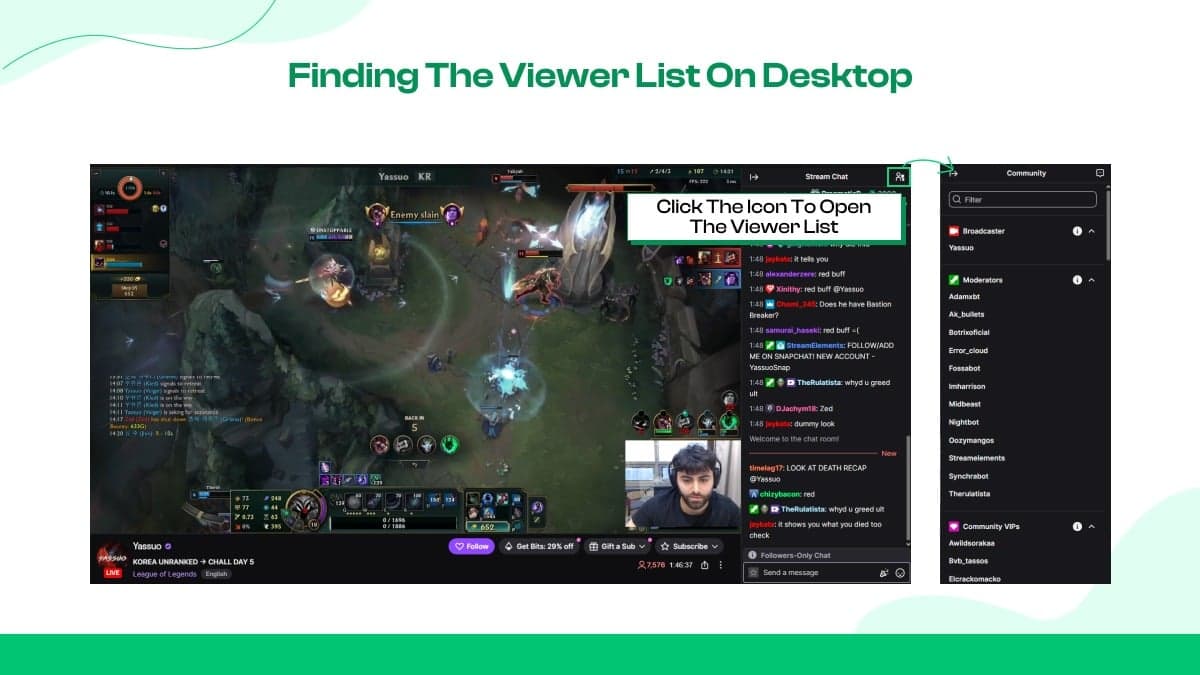
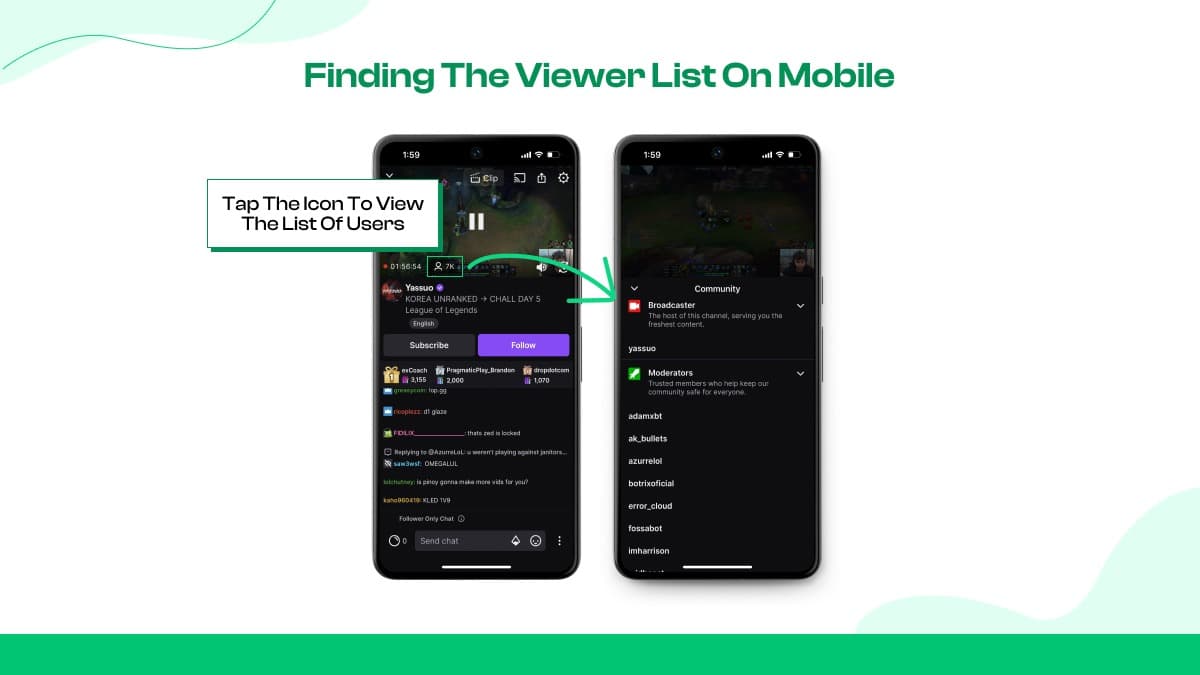
Keep in mind that this list only includes users signed in and active in chat. It won’t show everyone who’s watching but not chatting, like "lurkers."
Using Twitch Analytics to Understand Your Audience
Twitch’s Channel Analytics feature helps you get a clear picture of your overall audience, not just those who chat.
Accessing Viewer Demographics
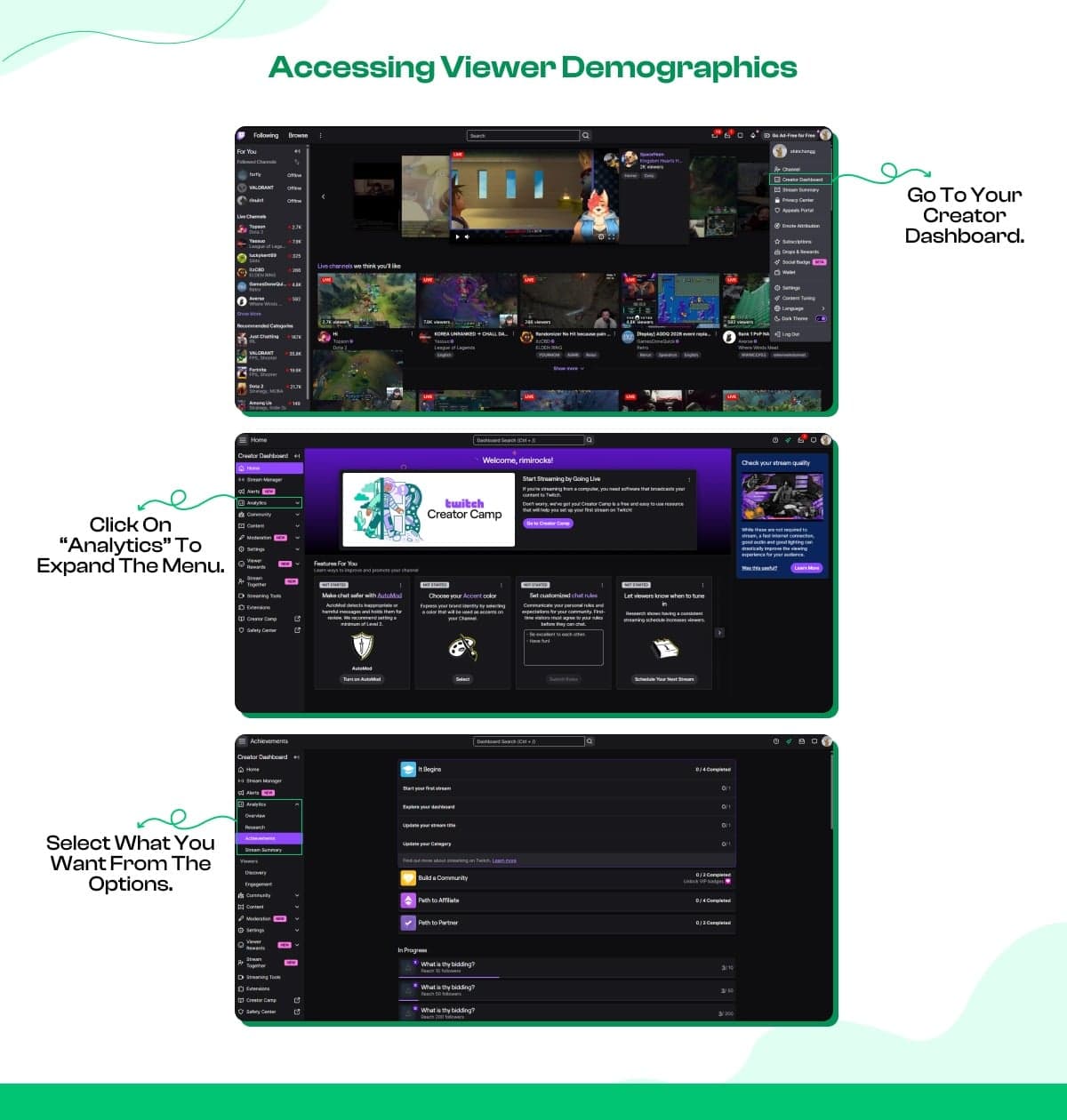
To access Channel Analytics from your Twitch Dashboard, follow these simple steps:
While Channel Analytics won't tell you exactly who is watching, it provides valuable insights into viewer habits. You can see when your audience is most active, which streams are performing well, and other important metrics.
Using Live Analytics During Streams
It allows you to keep track of important metrics like your current viewer count, average watch time, and chat activity as your stream progresses.
For example, you can see how many viewers are currently watching, which helps you understand how popular your stream is at any moment. Average watch time lets you know how long people are sticking around, giving you insight into which parts of your stream are grabbing their attention.
If you see a spike in viewers or more chat activity, it’s a good sign that your content is hitting home, and you can ride that wave.
Third-Party Tools for Monitoring Viewers
Native Twitch tools are great for measuring your streaming performance. But top-tier streamers often use external tools to set more control over the viewers.
Tools like Streamlabs and StreamElements can be connected to your Twitch account to give you more detailed tracking and analytics for your streams.
These platforms come with a bunch of features that can really amp up your streaming experience and help you get to know your audience better.
Streamlabs
As a beginner, if you are wondering how to see who is watching your Twitch stream on mobile? Then you can also use the “Steamlabs mobile app”.
To monitor your Twitch stream with Streamlabs, follow this process step-by-step:
StreamElements
You need to follow 3 steps to monitor and manage your Twitch stream using the StreamElements tool.
Twitch Extensions for Viewer Insights
Installing Twitch extensions can really amp up your ability to track and engage with viewers during your streams. There are several great options out there that provide real-time insights, like showing who’s actively chatting or highlighting your latest followers.
For example, some extensions display a list of viewers who are currently active in the chat, making it super easy for you to recognize and interact with your audience. You can see who’s participating and give shout-outs to familiar faces, which helps create a welcoming vibe.
Plus, some extensions notify you of recent followers and subscriptions, allowing you to thank your supporters on the spot.
Overall, Twitch extensions are a fantastic way to make your streams more interactive.
Most Importantly, Understand the Audience
Knowing how to see the viewer list on Twitch is surely an essential skill. But it takes a very smart approach to execute that data successfully.
As Twitch CEO Dan Clancy said, “The streamers that build communities are what make Twitch unique... we all want to find belonging.”
Acknowledge and Interact with Chat Participants
Interacting with chat is a great way to make your viewers feel connected to the stream. Greeting viewers as they enter or giving them a quick shout-out by name can make them feel welcome, like "Hey [username], glad to have you here!" This simple gesture creates a friendly atmosphere and encourages more people to jump into the chat.
When you engage with your chat, it boosts participation and can even reveal who’s watching, as viewers are more likely to interact when they feel noticed. Active chat helps build a sense of trust in their favourite and makes your stream more engaging.
Recognizing Regular Viewers
Noticing patterns in your chat can help you identify regular viewers who come back to watch your streams often. These loyal followers are usually your biggest fans, and giving them some recognition can really strengthen your community.
You might see familiar usernames pop up frequently or notice certain viewers engaging a lot in the chat. To show your appreciation, use tools like follower alerts or subscriber notifications.
When someone follows or subscribes, give them a shout-out during the stream! This makes them feel valued and encourages others to participate more. It's your first job to earn revenue through your Twitch stream.
Grow Your Twitch Accounts with Socialplug
It's a tough job to establish your audience community from scratch. Often, your all-out effort may still get ignored. Just a little push can transform your streaming status “0” to an elite creator.
Socialplug offers you complete services to boost your visibility. To attract organic viewers, we provide the necessary assistance to bypass the beginner silence. Whether you need chatters, twitch followers, or viewers to build trust, we are always ready.
Our goal is to give you the initial support required to get noticed by the Twitch algorithm.
Conclusion
To conclude, knowing how to see the viewer list on Twitch empowers you to connect with your fans. Identifying and engaging with your viewers on Twitch is super important for building a strong community. There are various methods for identifying and engaging with viewers on Twitch, including using the viewer list, checking analytics, and leveraging third-party tools.
Focus on building engagement and creating meaningful interactions with viewers, rather than obsessing over tracking every person watching. While you can’t see every viewer, consistent engagement and stream improvement will naturally lead to audience growth.


0 Comments